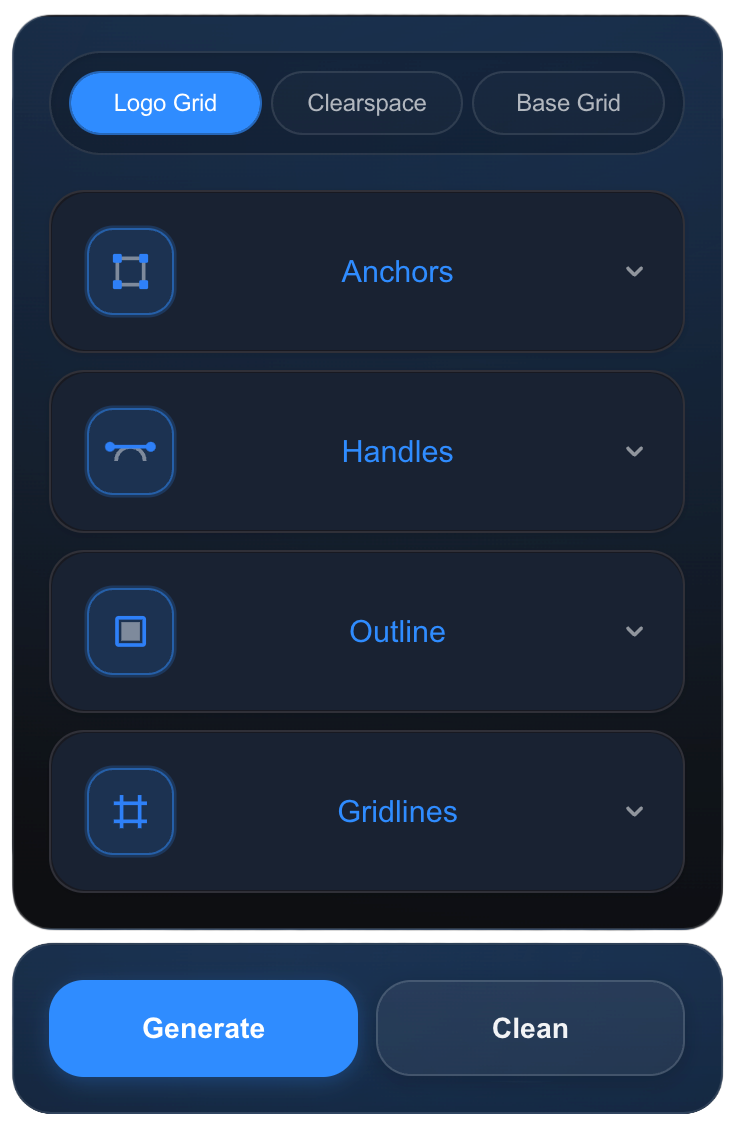
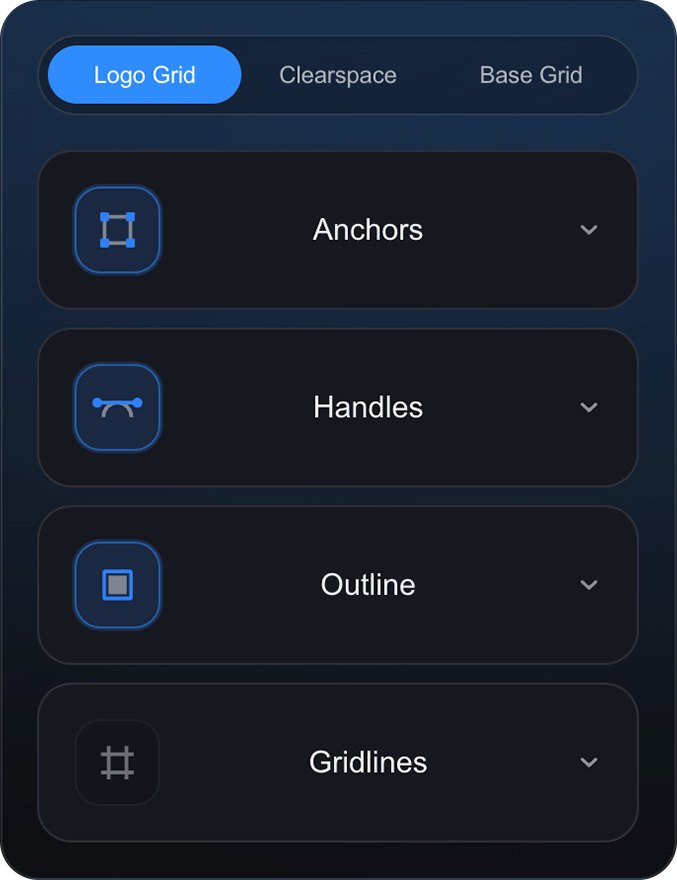
Generate accurate grids, anchors, handles, and construction guides that highlight the thinking behind the design and elevate how your work is perceived by clients and teams. For Adobe Illustrator.
Update available 🚀 Please update to the latest version for the best experience•We’re constantly working on new tools and improvements to make Helpers even better•
Reveal the hidden structure behind any logo. Extract anchor points, visualize Bézier handles, generate alignment guides, reconstruct circular geometry, and create precise bounding boxes – all automatically.
Anchors
Handles
Gridlines
PRO
Gridlines
Build precise logo gridlines
in seconds
Straight, diagonal, and circular grids highlight the underlying geometry, making it clear that the logo is built on thoughtful design decisions, not chance.
Clearspace
Clearspace
Clearspace
Clearspace
Define a protected area around your logo to preserve visibility
Calculate minimum clearspace using a reference object. Supports 25%, 50%, and 100% clearspace values. Automatically manages reference naming for a clean workflow.
These grids provide a strong structural foundation that reduces guesswork, speeds up decision-making, and ensures visual coherence across complex designs.
Download the version for your computer (Mac or Windows)
Install the ZXP installer
Step 3: Install the Plugin
Close Adobe Illustrator.
Extract the Helpers.zip file
Open the ZXP Installer app you just installed
Drag & Drop the .zxp file into the installer window.
Wait for the green “Installed” message
Step 4: Start Using It
Open Adobe Illustrator.
Go to the top menu: Window > Extensions > Helpers
Enter your license key
That’s it! Your new toolkit is ready to work
Updating the Plugin
To install a new update, simply repeat the same installation process.
Download the new version of the plugin and drag the updated .zxp file into the ZXP Installer again. The installer will automatically replace the older version with the new one.
Amitai Urbani
17/06/2026
WOooooow!
I’ve been working in Illustrator for years, and this plugin quickly became part of my daily workflow. The anchor point tools, handle controls, and line creation features save me a ton of time compared to doing everything manually. The UI is clean, easy to understand, and it just works. If you spend a lot of time editing paths and vectors, this is a no-brainer. Highly recommended.
🍪
We use cookies
to improve your experience and analyze site usage.